
Achievable logoAchievable logo
CCNA
Sign in
Sign up
Purchase
Textbook
Practice exams
Support
How it works
Exam catalog
Mountain with a flag at the peak
Textbook
Introduction
1. Introduction to networking
1.1 What is networking?
1.2 Components of a TCP/IP based network
1.3 How devices communicate on a TCP/IP based network
1.4 The layers of the TCP/IP model
1.5 Introduction to the Transport Layer
1.6 Introduction to network architecture
1.6.1 Network topology architectures
1.6.2 On-premise vs. the cloud and virtualization
2. Administering Ethernet LANs
3. IP connectivity
4. Network services
5. IPv6
6. Wireless networking
7. Network management and administering network devices
8. Network security fundamentals
9. Network automation and programmability
Wrapping up
Achievable logoAchievable logo
1.6.2 On-premise vs. the cloud and virtualization
Achievable CCNA
1. Introduction to networking
1.6. Introduction to network architecture
Our CCNA course is currently in development and is a work-in-progress.

On-premise vs. the cloud and virtualization

11 min read
Font
Discuss
Share
Feedback

On-premise vs. the cloud

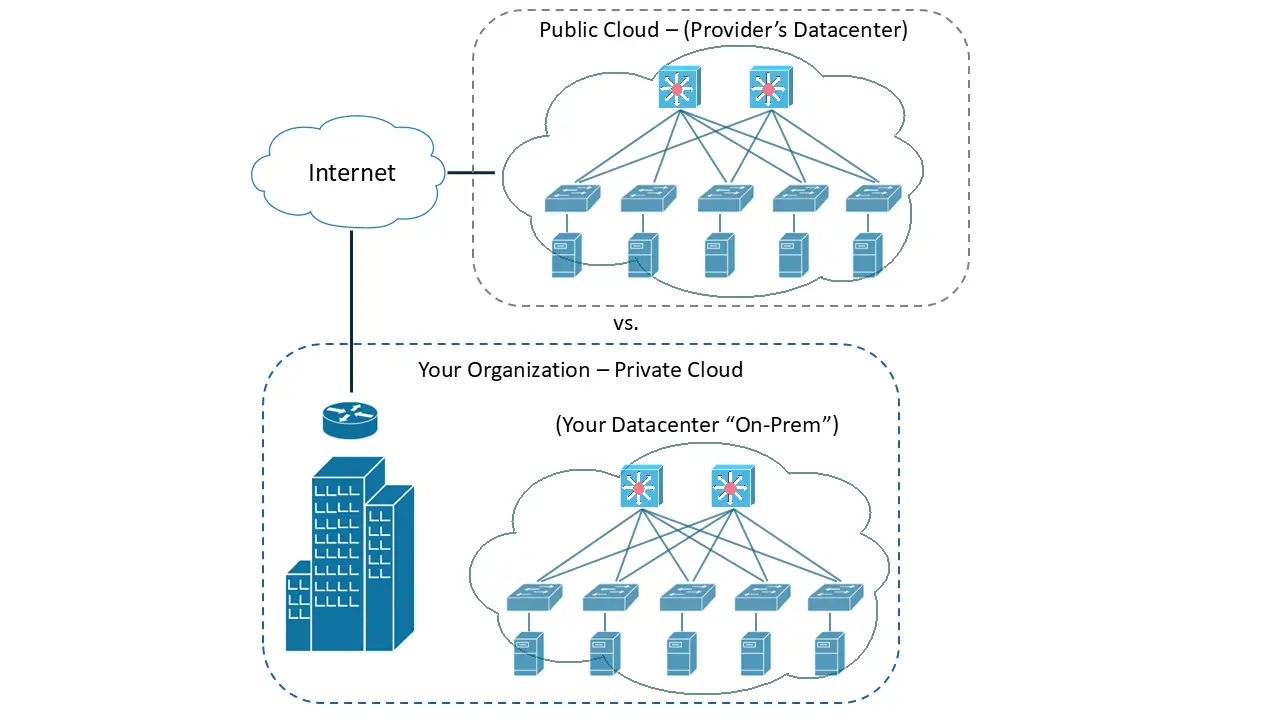
When you design a datacenter network, one of the first decisions is where your organization’s applications and data will live. The two most common approaches are on-premises (on-prem) and the cloud.

On-premises (on-prem)

With an on-prem model, the organization owns the datacenter hardware (servers, storage, networking equipment) and runs it in one of these places:

  • A facility the organization owns or rents
  • A rented space in a purpose-built co-location (CoLo) datacenter

In both cases, the organization purchases the equipment and is responsible for:

  • Hardware and software maintenance
  • Repairs and upgrades
  • (Often) utilities, cooling, and physical facility costs - especially if the datacenter is owned and operated by the organization

The cloud

In the cloud model, your applications and data run in a very large datacenter owned by another company (the cloud service provider). The provider owns and maintains the underlying infrastructure, and you consume it as a service.

To use the cloud, you connect your network (through your routers) to the provider - typically:

  • Over the Internet, or
  • Through a private WAN link offered by the cloud provider

Common benefits include:

  • Less infrastructure to maintain on your side (the provider handles much of the “heavy lifting”)
  • Faster scaling (add capacity, storage, or even entire servers on demand)
  • Reduced need for your own datacenter utilities and cooling

Common tradeoffs include:

  • Ongoing cost (a subscription/usage-based model where you pay periodically)
  • Security exposure risk (your data is hosted by a public provider; even with strong security controls, a provider breach can still expose customer data)

Comparison of an on-premises datacenter and cloud infrastructure
On-Prem vs. the Cloud
 

Public cloud vs. private cloud

The cloud model described above is more specifically the public cloud.

It’s also common to hear about a private cloud, where an organization uses its own datacenters to deliver “cloud-like” services internally (to departments, agencies, or business units). This is most common in large enterprises that have the resources to build and operate that model.

There are three major types of cloud services today:

Software as a Service (SaaS):

SaaS provides users with access to application software over the internet, removing the need to install or manage the software locally. Examples include email services or online productivity tools like Microsoft 365. Things like periodic hardware/software updates, installs, security and maintenance (backups) are all handled by the Cloud Service Provider (vendor).

Infrastructure as a Service (IaaS):

IaaS delivers virtualized computing resources - such as servers, storage, and networking - over the internet, allowing users to run and manage their own operating systems and applications. An example is Amazon Web Services (AWS) EC2. You (the customer) may be responsible for upgrading and maintaining the software and Operating Systems (OSes) that you’re running in an IaaS however, the and physical hardware maintenance and installs are all handled by the Cloud Provider.

Platform as a Service (PaaS):

PaaS offers a cloud-based environment with tools and services for developers to build, test, and deploy applications without managing the underlying infrastructure. Examples include Google App Engine or Microsoft Azure App Services. Similar to a SaaS, the Cloud Provider is responsible for building and maintaining all the hardware and software. The only thing that the customer is responsible for is maintaining the applications that they are building on the PaaS platforms.

One important thing to note is that recently, there has been this emergence of the “Hybrid-Cloud” model. This model is favored by organizations who want to reap some of the benefits of another entity maintaining some of their infrastructure and the agile, scalability of a Public Cloud environment, while still running a portion of their network on an On-Prem Datacenter where they have total administrative control, security, visibility and can also cut back on re-occurring subscription fees.

Virtualization

A lot of the servers behind websites, streaming platforms, and business applications are virtualized. You may hear that term often, so it’s worth being clear on what it means and why it’s used.

Traditional (bare-metal) servers

A traditional server is a physical computer designed for higher performance and capacity than a typical PC. It uses the same general types of components, but usually with more of them.

For example:

  • A PC might have 1 CPU, while a server might have 2-4.
  • A PC might have 1-2 hard drives, while a server might have many drive bays (sometimes 16 or more).
  • A server typically supports much more RAM, potentially reaching hundreds of TeraBytes (TB).

The main resource categories you’ll hear about are:

  • CPU, Memory, and Storage (often grouped as “compute” resources)
  • Network Interface Cards (NICs), which provide network connectivity

Servers often have 2-4 NICs, while PCs usually have one. Multiple NICs can be used for redundancy, or they can be bundled together (called “NIC Teaming”) to increase bandwidth.

A physical server also needs an Operating System (OS) installed on its storage. This is similar to a PC, but server OSes are designed for server workloads and typically include features and tools that require more compute resources.

On top of the OS, servers run applications that client devices consume (PCs, laptops, phones, and other endpoints). Examples include:

  • Email systems
  • Websites and web applications (including social media)
  • File and database storage
  • Audio/video repositories used for streaming

When a single OS is installed directly on the hardware, we often call it a bare-metal server.

Virtualized servers and virtual machines (VMs)

Virtualization changes the “one physical server = one OS” model.

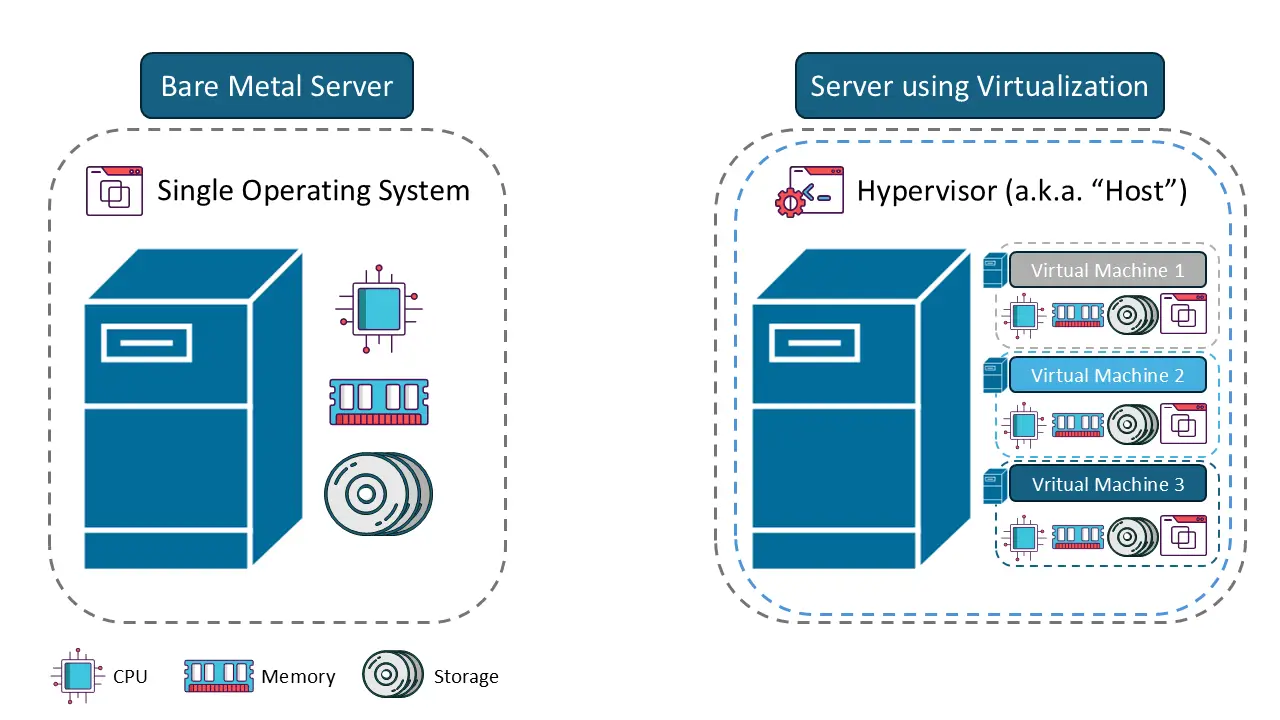
  • In a traditional server, one OS uses the server’s compute resources (CPU, memory, storage).
  • With virtualization, you split those compute resources into multiple “slices” and assign them to multiple virtual machines (VMs).

Comparison of a bare metal server and a virtualized server
Bare metal server vs. a virtualized server
 

Each VM behaves like its own logical server (and it can even be configured to emulate a PC). You allocate a defined amount of CPU, memory, and storage to each VM, up to limits set by the physical hardware.

This model makes it easier to:

  • Spin up (create) servers when needed
  • Shut down servers when they’re no longer needed
  • Reduce datacenter rack space, power usage, and cooling costs

Instead of installing 20 physical server chassis, you can run 20 virtual servers inside one physical chassis.

Cloud service providers rely heavily on this approach. They offer virtual machines and related services to customers, which is a big reason the cloud can scale quickly.

Hypervisors

A hypervisor is the software layer that creates and runs virtual machines. It lets an administrator:

  • Create VMs
  • Start and stop VMs
  • Monitor and manage VMs

There are two types of Hypervisors:

  • Type 1 - These hypervisors are installed directly on the server’s hardware and have direct access to the server’s compute (CPU, Memory and Storage) resources. For this reason, the virtual machines running within these hypervisors are typically faster and more powerful.
  • Type 2 - These hypervisors are installed on top of the OS that’s already running on a server. They do not have direct access to the server (or standard PC)'s compute resources, which makes them very limited. The advantage here is that they are conveniently accessible, like any other application running on the OS and can be launched with the click of a button. Type 1 hypervisors typically take up quite some time to boot up when the physical server is powered on. But, once they are powered on, the Virtual Machines that they are hosting can run much faster than they would on a Type 2 Hypervisor, due to having direct access to the Hardware resources.

Why virtualization is useful

Virtualization is popular because it’s flexible and efficient:

  • You can create, copy, and back up VMs quickly.
  • You can start and stop VMs (similar to powering a computer on and off) with a few clicks.
  • VMs behave like normal computers, but they run inside a hypervisor on a physical server (or even a standard PC).

How VMs connect to the network

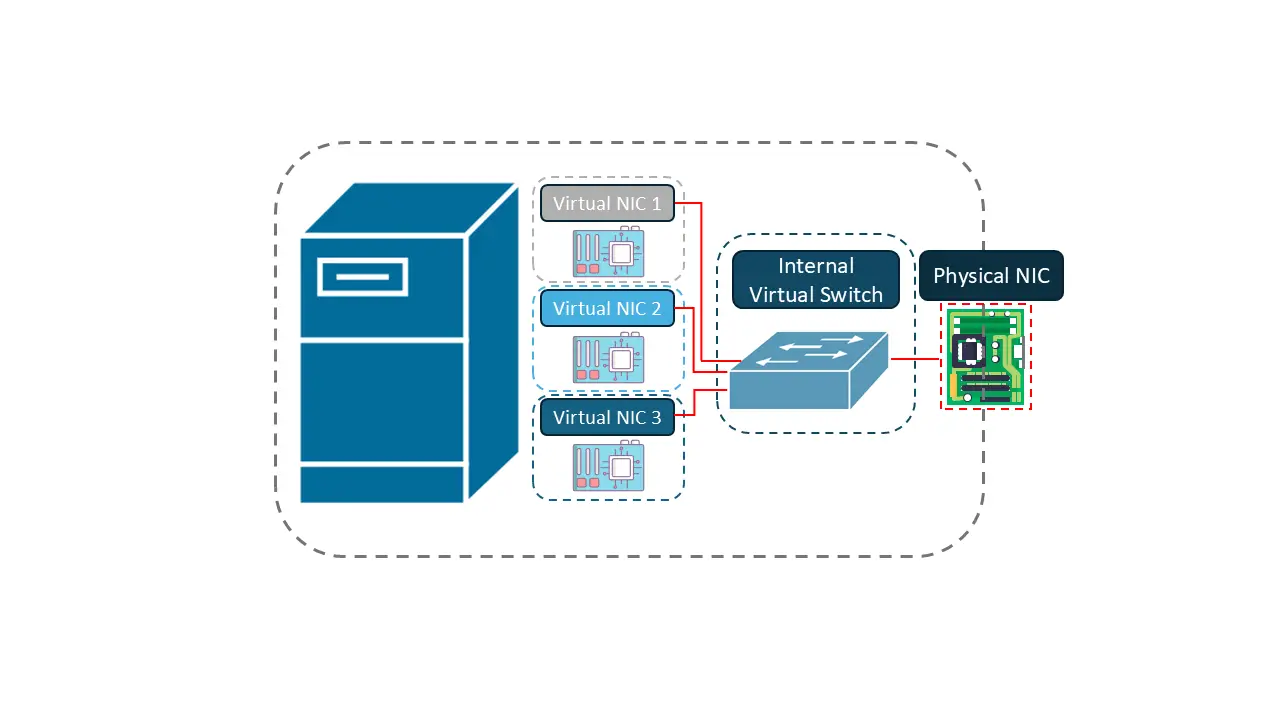
Virtual machines still need network connectivity. Hypervisors provide this using a virtual switch.

  • VMs connect to the virtual switch using virtual NICs.
  • Each virtual NIC has its own MAC address.
  • The virtual switch maps traffic to the physical NIC(s) on the host server or PC.

Different VMs can be placed into different networks (or the same network) depending on how you configure the virtual switch and the virtual NICs.

A helpful way to think about it: the virtual switch acts like a “bridge” between the physical NIC and the virtual NICs. You plug a network cable into the physical NIC to give the host access to the physical network, and the hypervisor extends that connectivity to the VMs.

Virtual switch inside a virtual server
Virtual switching

Containers

Network virtualization containers are lightweight, isolated environments that run applications and their dependencies, enabling flexible deployment across different networks. Unlike traditional Virtual Machines, containers like Docker share the host OS, making them more efficient. They are commonly used to deploy network services, test configurations, and simplify software updates in virtualized network environments. Network and Systems Administrators use containers to deploy network services, test configurations, and streamline maintenance. Their main benefits include improved scalability, simplified management, and enhanced flexibility within virtualized network infrastructures, making modern network operations more efficient.

Virtual routing and forwarding (VRFs)

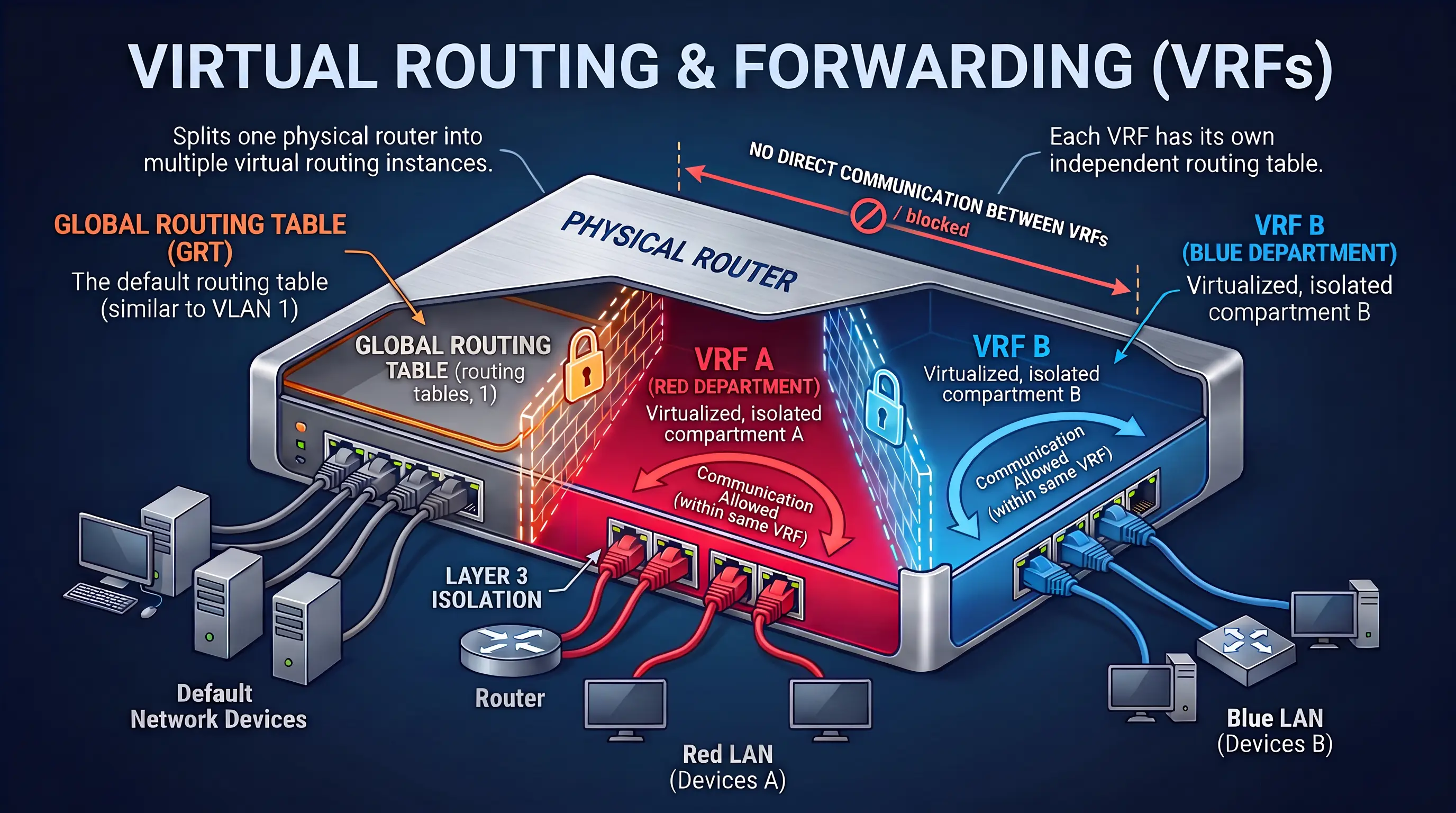
By default, all router interfaces and routes on a Router are contained within what we call the "Global Routing Table" (GRT). This is the default routing table, similar to “VLAN 1”, the Default VLAN in Switches. It cannot be created, modified or deleted.

VRFs segment routing tables within routers into their own virtualized, isolated compartments. VRFs must first be defined on the Router. Once created, you must move router interfaces into the VRF, essentially allowing the interfaces on the Router to be segmented into a separate routing instance (routing table). The routes and interfaces from one VRF cannot directly interact with another on the same Router directly.

Router interfaces within the same VRF can indeed communicate with each other directly

By default, as long as a Router has a routing entry in its Routing Table, the Router will route traffic from any device (or IP address) to that network. But if VRFs have been created, the Router can only route traffic between routes that belong within the same VRF.

This also works as a great security measure to segment networks (at Layer 3) and prevent them from openly communicating with each other, which is the default behavior of Routers.

We will discuss routing in more detail in Chapter 3 IP Connectivity.

On-premises (on-prem)

  • Organization owns and maintains hardware and facility
  • Responsible for maintenance, repairs, upgrades, utilities, cooling
  • Can use own facility or co-location (CoLo) datacenter

The cloud

  • Provider owns and maintains infrastructure
  • Access via Internet or private WAN link
  • Benefits: less maintenance, fast scaling, reduced facility costs
  • Tradeoffs: ongoing subscription costs, potential security exposure

Public cloud vs. private cloud

  • Public cloud: services from third-party provider, shared infrastructure
  • Private cloud: organization delivers cloud-like services internally
  • Hybrid cloud: combines on-prem and public cloud for flexibility and control

Types of cloud services

  • Software as a Service (SaaS): provider manages everything, user accesses software online
  • Infrastructure as a Service (IaaS): provider manages hardware, customer manages OS and apps
  • Platform as a Service (PaaS): provider manages hardware and software, customer manages applications

Virtualization

  • Traditional (bare-metal) server: one OS directly on hardware, high performance, multiple NICs
  • Virtualization: splits compute resources into multiple virtual machines (VMs)
    • Increases server utilization, reduces physical hardware needs
    • Enables rapid server creation and shutdown

Hypervisors

  • Type 1: runs directly on hardware, high performance, used in datacenters
  • Type 2: runs on top of an OS, more limited, convenient for desktops

Benefits of virtualization

  • Quick creation, backup, and management of VMs
  • Efficient use of hardware resources
  • VMs behave like independent computers

VM network connectivity

  • Hypervisor provides virtual switch for VM networking
  • VMs use virtual NICs with unique MAC addresses
  • Virtual switch bridges virtual NICs to physical NICs

Containers

  • Lightweight, isolated environments sharing host OS (e.g., Docker)
  • Efficient resource use, fast deployment, easy updates
  • Used for deploying network services, testing, and maintenance

Virtual Routing and Forwarding (VRFs)

  • Segments router routing tables into isolated compartments
  • Interfaces assigned to VRFs only communicate within the same VRF
  • Enhances security by preventing inter-VRF communication by default

Sign up for free to take 10 quiz questions on this topic

Previous
Next  | 2.1 Wired network access
All rights reserved ©2016 - 2026 Achievable, Inc.

On-premise vs. the cloud and virtualization

On-premise vs. the cloud

When you design a datacenter network, one of the first decisions is where your organization’s applications and data will live. The two most common approaches are on-premises (on-prem) and the cloud.

On-premises (on-prem)

With an on-prem model, the organization owns the datacenter hardware (servers, storage, networking equipment) and runs it in one of these places:

  • A facility the organization owns or rents
  • A rented space in a purpose-built co-location (CoLo) datacenter

In both cases, the organization purchases the equipment and is responsible for:

  • Hardware and software maintenance
  • Repairs and upgrades
  • (Often) utilities, cooling, and physical facility costs - especially if the datacenter is owned and operated by the organization

The cloud

In the cloud model, your applications and data run in a very large datacenter owned by another company (the cloud service provider). The provider owns and maintains the underlying infrastructure, and you consume it as a service.

To use the cloud, you connect your network (through your routers) to the provider - typically:

  • Over the Internet, or
  • Through a private WAN link offered by the cloud provider

Common benefits include:

  • Less infrastructure to maintain on your side (the provider handles much of the “heavy lifting”)
  • Faster scaling (add capacity, storage, or even entire servers on demand)
  • Reduced need for your own datacenter utilities and cooling

Common tradeoffs include:

  • Ongoing cost (a subscription/usage-based model where you pay periodically)
  • Security exposure risk (your data is hosted by a public provider; even with strong security controls, a provider breach can still expose customer data)


Public cloud vs. private cloud

The cloud model described above is more specifically the public cloud.

It’s also common to hear about a private cloud, where an organization uses its own datacenters to deliver “cloud-like” services internally (to departments, agencies, or business units). This is most common in large enterprises that have the resources to build and operate that model.

There are three major types of cloud services today:

Software as a Service (SaaS):

SaaS provides users with access to application software over the internet, removing the need to install or manage the software locally. Examples include email services or online productivity tools like Microsoft 365. Things like periodic hardware/software updates, installs, security and maintenance (backups) are all handled by the Cloud Service Provider (vendor).

Infrastructure as a Service (IaaS):

IaaS delivers virtualized computing resources - such as servers, storage, and networking - over the internet, allowing users to run and manage their own operating systems and applications. An example is Amazon Web Services (AWS) EC2. You (the customer) may be responsible for upgrading and maintaining the software and Operating Systems (OSes) that you’re running in an IaaS however, the and physical hardware maintenance and installs are all handled by the Cloud Provider.

Platform as a Service (PaaS):

PaaS offers a cloud-based environment with tools and services for developers to build, test, and deploy applications without managing the underlying infrastructure. Examples include Google App Engine or Microsoft Azure App Services. Similar to a SaaS, the Cloud Provider is responsible for building and maintaining all the hardware and software. The only thing that the customer is responsible for is maintaining the applications that they are building on the PaaS platforms.

One important thing to note is that recently, there has been this emergence of the “Hybrid-Cloud” model. This model is favored by organizations who want to reap some of the benefits of another entity maintaining some of their infrastructure and the agile, scalability of a Public Cloud environment, while still running a portion of their network on an On-Prem Datacenter where they have total administrative control, security, visibility and can also cut back on re-occurring subscription fees.

Virtualization

A lot of the servers behind websites, streaming platforms, and business applications are virtualized. You may hear that term often, so it’s worth being clear on what it means and why it’s used.

Traditional (bare-metal) servers

A traditional server is a physical computer designed for higher performance and capacity than a typical PC. It uses the same general types of components, but usually with more of them.

For example:

  • A PC might have 1 CPU, while a server might have 2-4.
  • A PC might have 1-2 hard drives, while a server might have many drive bays (sometimes 16 or more).
  • A server typically supports much more RAM, potentially reaching hundreds of TeraBytes (TB).

The main resource categories you’ll hear about are:

  • CPU, Memory, and Storage (often grouped as “compute” resources)
  • Network Interface Cards (NICs), which provide network connectivity

Servers often have 2-4 NICs, while PCs usually have one. Multiple NICs can be used for redundancy, or they can be bundled together (called “NIC Teaming”) to increase bandwidth.

A physical server also needs an Operating System (OS) installed on its storage. This is similar to a PC, but server OSes are designed for server workloads and typically include features and tools that require more compute resources.

On top of the OS, servers run applications that client devices consume (PCs, laptops, phones, and other endpoints). Examples include:

  • Email systems
  • Websites and web applications (including social media)
  • File and database storage
  • Audio/video repositories used for streaming

When a single OS is installed directly on the hardware, we often call it a bare-metal server.

Virtualized servers and virtual machines (VMs)

Virtualization changes the “one physical server = one OS” model.

  • In a traditional server, one OS uses the server’s compute resources (CPU, memory, storage).
  • With virtualization, you split those compute resources into multiple “slices” and assign them to multiple virtual machines (VMs).


Each VM behaves like its own logical server (and it can even be configured to emulate a PC). You allocate a defined amount of CPU, memory, and storage to each VM, up to limits set by the physical hardware.

This model makes it easier to:

  • Spin up (create) servers when needed
  • Shut down servers when they’re no longer needed
  • Reduce datacenter rack space, power usage, and cooling costs

Instead of installing 20 physical server chassis, you can run 20 virtual servers inside one physical chassis.

Cloud service providers rely heavily on this approach. They offer virtual machines and related services to customers, which is a big reason the cloud can scale quickly.

Hypervisors

A hypervisor is the software layer that creates and runs virtual machines. It lets an administrator:

  • Create VMs
  • Start and stop VMs
  • Monitor and manage VMs

There are two types of Hypervisors:

  • Type 1 - These hypervisors are installed directly on the server’s hardware and have direct access to the server’s compute (CPU, Memory and Storage) resources. For this reason, the virtual machines running within these hypervisors are typically faster and more powerful.
  • Type 2 - These hypervisors are installed on top of the OS that’s already running on a server. They do not have direct access to the server (or standard PC)'s compute resources, which makes them very limited. The advantage here is that they are conveniently accessible, like any other application running on the OS and can be launched with the click of a button. Type 1 hypervisors typically take up quite some time to boot up when the physical server is powered on. But, once they are powered on, the Virtual Machines that they are hosting can run much faster than they would on a Type 2 Hypervisor, due to having direct access to the Hardware resources.

Why virtualization is useful

Virtualization is popular because it’s flexible and efficient:

  • You can create, copy, and back up VMs quickly.
  • You can start and stop VMs (similar to powering a computer on and off) with a few clicks.
  • VMs behave like normal computers, but they run inside a hypervisor on a physical server (or even a standard PC).

How VMs connect to the network

Virtual machines still need network connectivity. Hypervisors provide this using a virtual switch.

  • VMs connect to the virtual switch using virtual NICs.
  • Each virtual NIC has its own MAC address.
  • The virtual switch maps traffic to the physical NIC(s) on the host server or PC.

Different VMs can be placed into different networks (or the same network) depending on how you configure the virtual switch and the virtual NICs.

A helpful way to think about it: the virtual switch acts like a “bridge” between the physical NIC and the virtual NICs. You plug a network cable into the physical NIC to give the host access to the physical network, and the hypervisor extends that connectivity to the VMs.

Containers

Network virtualization containers are lightweight, isolated environments that run applications and their dependencies, enabling flexible deployment across different networks. Unlike traditional Virtual Machines, containers like Docker share the host OS, making them more efficient. They are commonly used to deploy network services, test configurations, and simplify software updates in virtualized network environments. Network and Systems Administrators use containers to deploy network services, test configurations, and streamline maintenance. Their main benefits include improved scalability, simplified management, and enhanced flexibility within virtualized network infrastructures, making modern network operations more efficient.

Virtual routing and forwarding (VRFs)

By default, all router interfaces and routes on a Router are contained within what we call the "Global Routing Table" (GRT). This is the default routing table, similar to “VLAN 1”, the Default VLAN in Switches. It cannot be created, modified or deleted.

VRFs segment routing tables within routers into their own virtualized, isolated compartments. VRFs must first be defined on the Router. Once created, you must move router interfaces into the VRF, essentially allowing the interfaces on the Router to be segmented into a separate routing instance (routing table). The routes and interfaces from one VRF cannot directly interact with another on the same Router directly.

Router interfaces within the same VRF can indeed communicate with each other directly

By default, as long as a Router has a routing entry in its Routing Table, the Router will route traffic from any device (or IP address) to that network. But if VRFs have been created, the Router can only route traffic between routes that belong within the same VRF.

This also works as a great security measure to segment networks (at Layer 3) and prevent them from openly communicating with each other, which is the default behavior of Routers.

We will discuss routing in more detail in Chapter 3 IP Connectivity.

Key points

On-premises (on-prem)

  • Organization owns and maintains hardware and facility
  • Responsible for maintenance, repairs, upgrades, utilities, cooling
  • Can use own facility or co-location (CoLo) datacenter

The cloud

  • Provider owns and maintains infrastructure
  • Access via Internet or private WAN link
  • Benefits: less maintenance, fast scaling, reduced facility costs
  • Tradeoffs: ongoing subscription costs, potential security exposure

Public cloud vs. private cloud

  • Public cloud: services from third-party provider, shared infrastructure
  • Private cloud: organization delivers cloud-like services internally
  • Hybrid cloud: combines on-prem and public cloud for flexibility and control

Types of cloud services

  • Software as a Service (SaaS): provider manages everything, user accesses software online
  • Infrastructure as a Service (IaaS): provider manages hardware, customer manages OS and apps
  • Platform as a Service (PaaS): provider manages hardware and software, customer manages applications

Virtualization

  • Traditional (bare-metal) server: one OS directly on hardware, high performance, multiple NICs
  • Virtualization: splits compute resources into multiple virtual machines (VMs)
    • Increases server utilization, reduces physical hardware needs
    • Enables rapid server creation and shutdown

Hypervisors

  • Type 1: runs directly on hardware, high performance, used in datacenters
  • Type 2: runs on top of an OS, more limited, convenient for desktops

Benefits of virtualization

  • Quick creation, backup, and management of VMs
  • Efficient use of hardware resources
  • VMs behave like independent computers

VM network connectivity

  • Hypervisor provides virtual switch for VM networking
  • VMs use virtual NICs with unique MAC addresses
  • Virtual switch bridges virtual NICs to physical NICs

Containers

  • Lightweight, isolated environments sharing host OS (e.g., Docker)
  • Efficient resource use, fast deployment, easy updates
  • Used for deploying network services, testing, and maintenance

Virtual Routing and Forwarding (VRFs)

  • Segments router routing tables into isolated compartments
  • Interfaces assigned to VRFs only communicate within the same VRF
  • Enhances security by preventing inter-VRF communication by default

More from Introduction to network architecture

  • Network topology architectures