




Network Time Protocol (NTP)
Setting the time manually
Routers on your network need accurate, up-to-date time. Each router has an internal clock, but the factory default time may be incorrect or set to a different time zone. When you need to set the time directly, you can set the time manually from Privileged mode.
| Command | HH:MM:SS | Day of the Month | Month of the Year | Year |
|---|---|---|---|---|
| clock set | 12:30:00 | 1 | January | 2026 |
The command above sets the router’s time to 12:30pm on January 1st 2026.
To verify the current time on the router, enter the show clock command.
If you need the router’s clock to match its local time zone, configure the time zone in Global Configuration mode.
| Command | Name of the Time Zone (EST, CST, PST) | Hours Offset |
|---|---|---|
| clock timezone | EST | -5 |
You can also configure the router to honor Daylight Savings Time (in the United States).
In Global Configuration mode, enter the following command:
Manually setting the clock can be fine in a lab, or in environments where time accuracy isn’t critical. In a larger network, though, accurate time becomes essential.
For example, if several routers experience a brief outage, you’ll often review logs to correlate events across devices. If the routers’ clocks aren’t synchronized, log timestamps won’t line up. That makes it harder to determine which log messages are related to the outage and which occurred outside the event window. This is why it’s important to keep time synchronized across all network devices (not just routers).
Network Time Protocol (NTP)
NTP is a protocol that synchronizes time across network devices. In our case, we configure NTP on routers. NTP uses UDP port 123 when exchanging time synchronization packets.
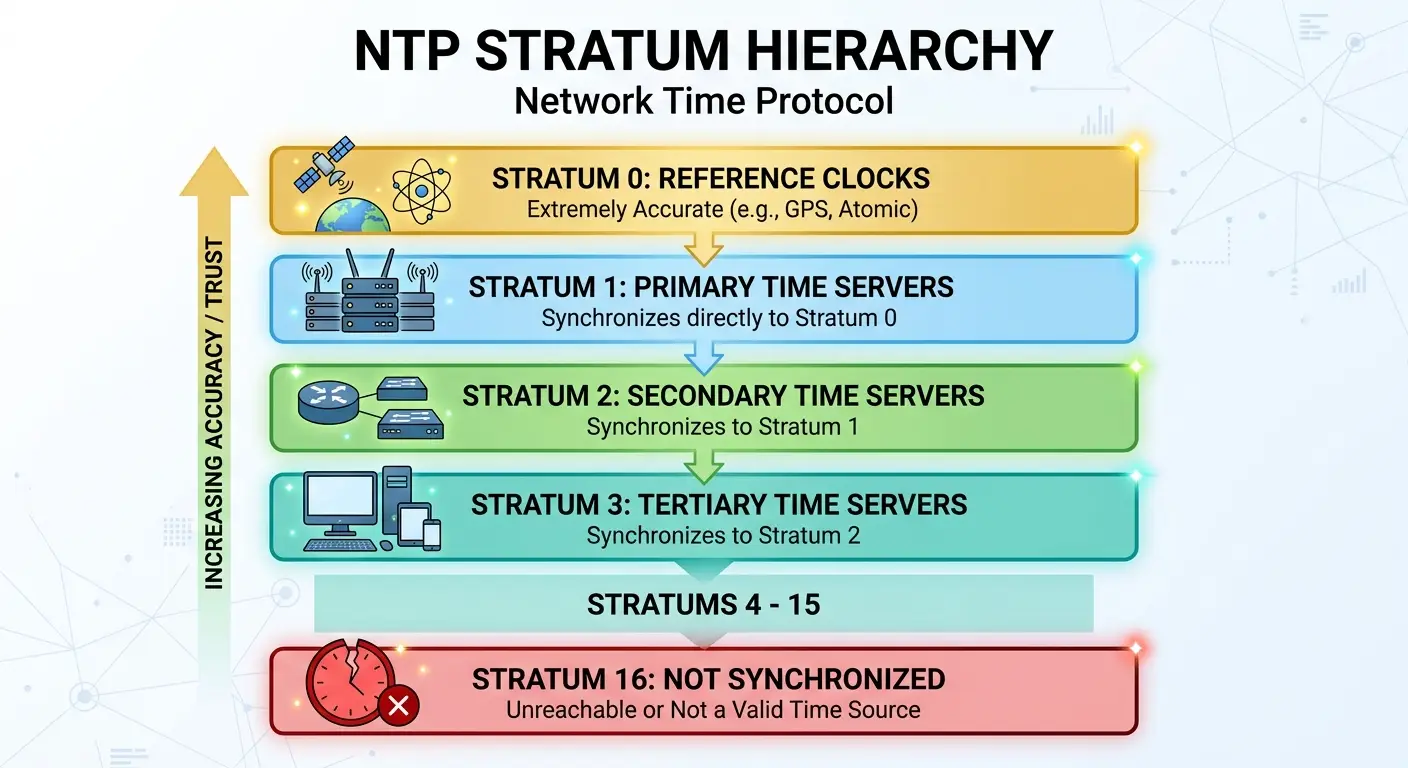
NTP organizes time sources into a hierarchy called stratums. A stratum indicates the trustworthiness of a time source. Stratums range from stratum 0 to stratum 16. The lower the stratum, the more accurate the time.
The most trustworthy is stratum 0. This stratum typically includes atomic clocks, which measure the frequency of atoms and provide extremely accurate time. These clocks are typically carried on GPS satellites, and atomic-clock time is also accessible on the Internet.
When a device uses a time source from a particular stratum, that device is placed in the next stratum number. In other words, each “hop” away from the original source is considered less accurate than the previous stratum.
For example, if a server or router uses an atomic clock as its time source, that server or router is in stratum 1. This is the most accurate time source most organizations can use (unless they own atomic clocks). That stratum 1 device can then act as the time source for the rest of the network, keeping all devices synchronized.
Configuring a router as an NTP server
You can configure a Cisco router to act as the time source for your network.
Before you do this, the router needs a correct clock. You can either:
- Set the clock manually, or
- Use a stratum 0 or stratum 1 time source on the Internet for the best possible accuracy
Then, in Global Configuration mode, enter the command below.
| Command | Stratum number |
|---|---|
| ntp master | 2 |
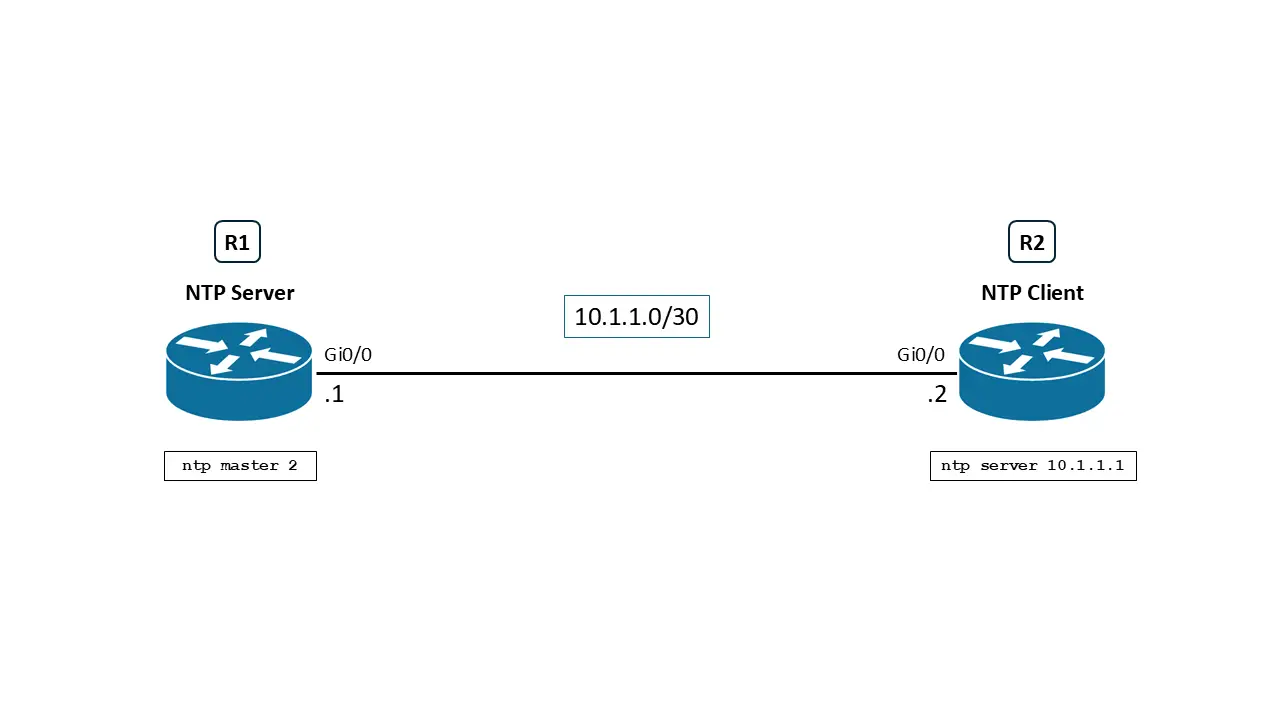
This configures the router as an NTP Server, running in stratum 2.
Configuring a router as an NTP client
Suppose your NTP Server is R1, and another router, R2, is connected to it. You want R2 to act as an NTP Client and synchronize its time using R1’s clock.
R2 (the client) sends an NTP Time Request to the server. The server responds with its current time, allowing R2 to synchronize.
To configure the client, you need the IP address of the NTP server (R1). In this example, it’s 10.1.1.1.
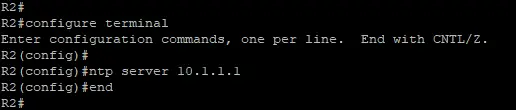
To point an NTP client router to an NTP server, enter the following command in Global Configuration mode:
| Command | IP address of the NTP Server |
|---|---|
| ntp server | 10.1.1.1 |
Verifying the NTP status on a router
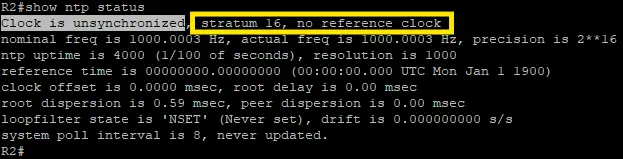
To confirm that the router has synchronized with a valid time source, run this show command:
If the router hasn’t synchronized yet, you’ll see:
- The message “Clock is unsynchronized”
- A stratum number of 16
- The message “no reference clock”
Another sign is in the output of show clock. If you see an asterisk (*) next to the time, it indicates the clock has not yet been synchronized with a valid time source and the clock is also not manually set (it’s still using the default clock settings).
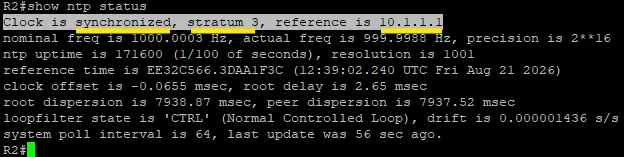
NTP synchronization can take several minutes. Once the clock has synchronized, the output of show ntp status should look like this:
Notice that the reference clock now displays the IP address of the NTP server.
When you run:
the time should display without an asterisk or any special character. That indicates the clock has synchronized with a valid time source.
The clock will also display without any preceding characters if the time was manually set on the router.
Here are some NTP codes that can show up in the output from the show clock command:
| NTP Code | Indication |
|---|---|
| Asterisk (*) | The time is not authoritative, meaning, it is not synchronized with a valid time source, and the clock is also not set manually. |
| Blank | When no special characters precede the time, that means that the time is authoritative, meaning it is synchronized with a time source, or the clock has been manually set. |
| Period (.) | The time is authoritative however, the Router has lost its synchronization with its NTP Server and the clock may be out of sync. |