



Dynamic Host Configuration Protocol (DHCP)
This chapter covers one of the most common ways to assign IP addresses to hosts on a network.
In the early days of networking, there weren’t many hosts on a network. That made it practical to manually configure an IP address on each host’s NIC (network interface card) in its operating system. You could enter the IP address, Subnet Mask, and Default Gateway directly in Windows (or whatever OS the host was running).
You would do this one host at a time. That worked when there were only a few devices, but modern networks often have hundreds (or thousands) of hosts. At that scale, manually assigning and maintaining IP addresses becomes impractical.
A more scalable approach is to assign IP addresses dynamically. The protocol that supports this is the Dynamic Host Configuration Protocol (DHCP).
With DHCP:
- Hosts that need an IP address, Subnet Mask, and Default Gateway are called DHCP Clients.
- DHCP Clients request that information from a DHCP Server.
- A DHCP Server is a server running a DHCP application. It has one or more pools of IP addresses (typically one pool per subnet), with the Subnet Mask and Default Gateway pre-configured for each pool.
When a DHCP Client requests addressing information, the DHCP Server leases an available IP address (plus the Subnet Mask and Default Gateway) to the client for a specific period of time.
When the lease expires, the client can negotiate again with the server. Depending on the situation, it may receive the same IP address again or a new one.
Before an IP address is assigned:
- The DHCP Server checks to make sure it isn’t leasing a duplicate address.
- The client also checks before it commits to using the offered address.
Because the DHCP Server keeps assignment information in its database, you get a centralized, dynamic way to track addressing. The main manual work is:
- Pre-configuring the DHCP pools on the server
- Ensuring client NICs are set to obtain an IP address automatically (via DHCP)
Please study the table below:
| Client or Server | Action | Description |
|---|---|---|
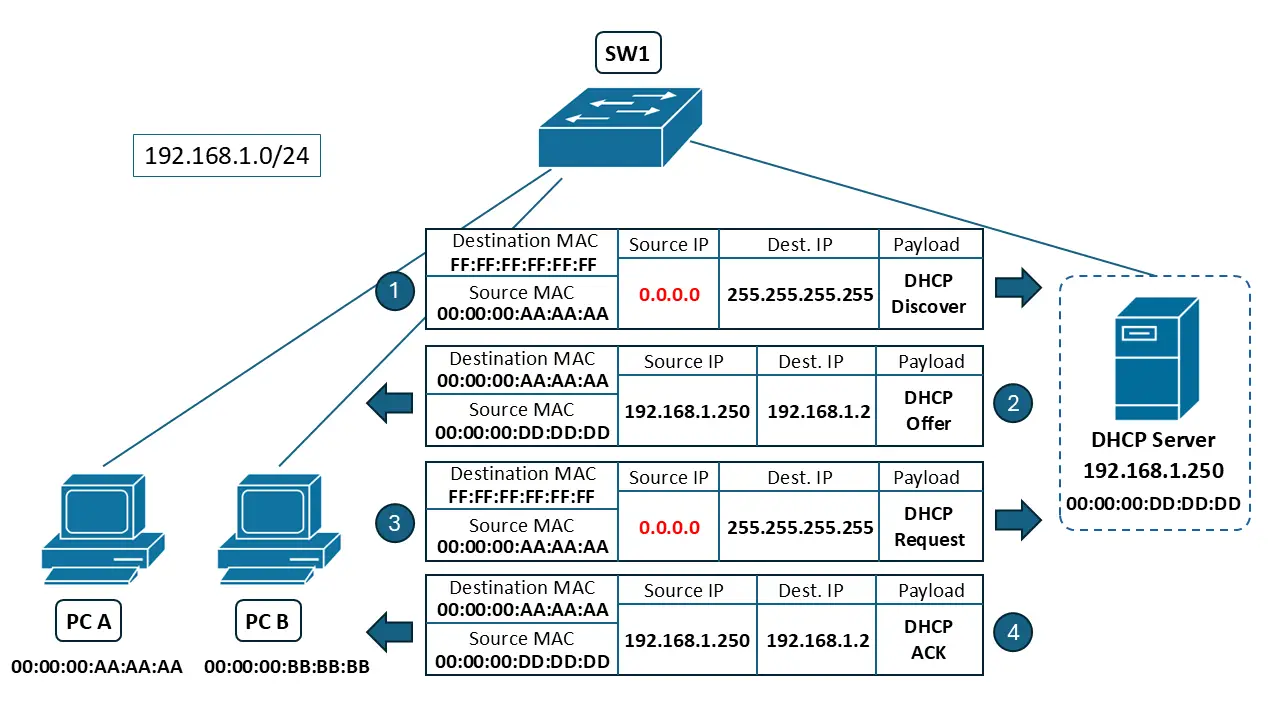
| Client | Discover | The Client sends a Broadcast Frame containing a DHCP_DISCOVER message in search of a DHCP Server to receive an IP address, Subnet Mask and Default Gateway |
| Server | Offer | The Server receives the DISCOVER message from the Client and looks for an IP address to lease to the Client. If there are IPs available, it will send all the pertinent information back to the Client in a DHCP_OFFER message. |
| Client | Request | The Client receives the OFFER and sends an ARP Request on the LAN for the IP address that was offered. If it doesn’t receive a response, then that means no one else is currently using it. The Client will then send a DHCP_REQUEST to the Server, committing to the request of the IP that was offered. |
| Server | Acknowledgement | The Server receives the REQUEST from the Client and before it releases the IP address that was requested, it sends out 2 pings to that IP to make sure that no one is currently using it. If it doesn’t receive a reply, then it will finally send a DHCP_ACK message to the Client, letting it know that it is ok to use the IP address. |
Two design approaches for DHCP
There are two design approaches to deploying a DHCP Server:
- Place the DHCP Server in the same network as the clients.
- Place the DHCP Server in a different network than the clients.
The second approach introduces an important detail we’ll work through.
Deploying a DHCP Server in the same network as the clients
When the DHCP Server is in the same network (or VLAN) as the clients, the process is straightforward.
DHCP Clients begin by sending DHCP_DISCOVER messages as Broadcast Frames. They do this because:
- They don’t have an IP address yet.
- You don’t want to hardcode a DHCP Server IP address on every host.
- You want the host to be able to join different networks without needing prior knowledge of the DHCP Server’s address.
Because the DHCP Server is in the same broadcast domain, those DHCP_DISCOVER Broadcast Frames can reach it at Layer 2, and the D.O.R.A. process can complete.
The challenge comes when the DHCP Server is on a different network than the clients.
Deploying a DHCP Server on different network than the clients
When DHCP Clients and the DHCP Server are on different networks, there’s a common roadblock.
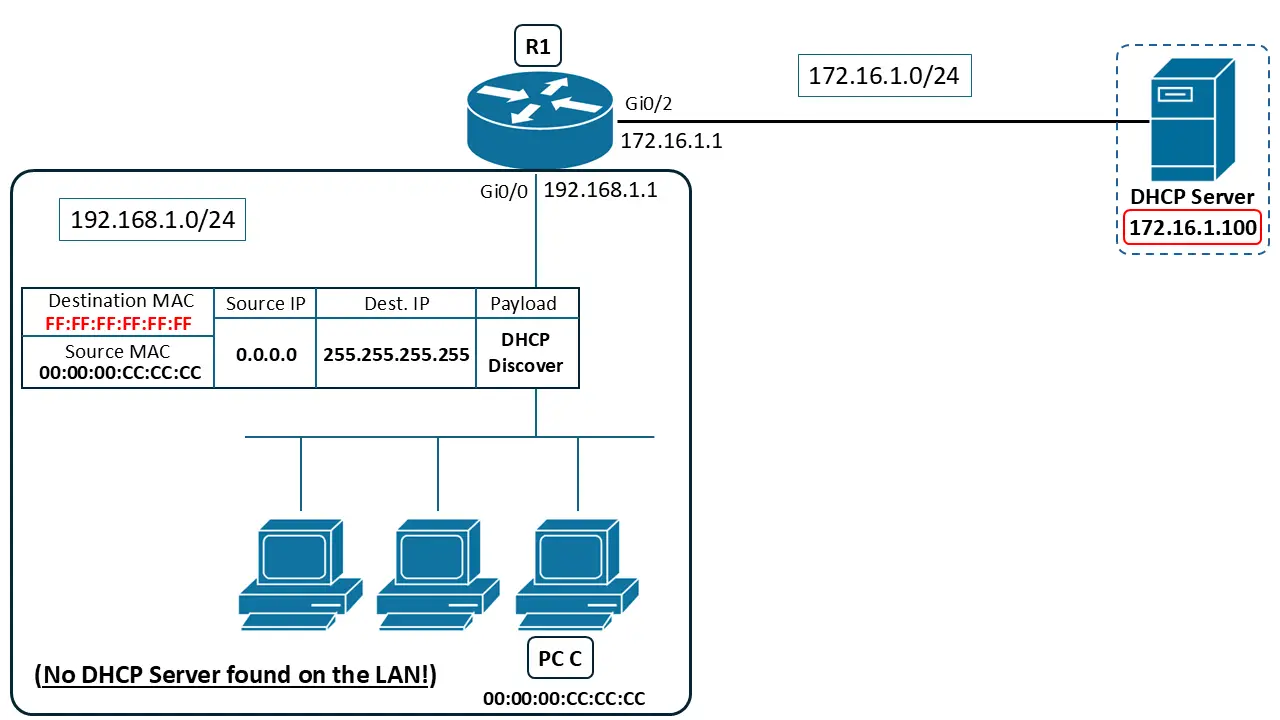
Consider what happens when a client sends a DHCP_DISCOVER Broadcast Frame into the network while searching for a DHCP Server.
As shown in the image, if there are no DHCP servers in the same network as PC A, PC A won’t be able to obtain an IP address.
To solve this, we need the router to pass the client’s DHCP discovery traffic to the DHCP Server in another network. That’s where DHCP relay comes in.
Dhcp relay agents
To forward a DHCP_DISCOVER message from a DHCP Client to a DHCP Server in a different network, you use a DHCP Relay Agent.
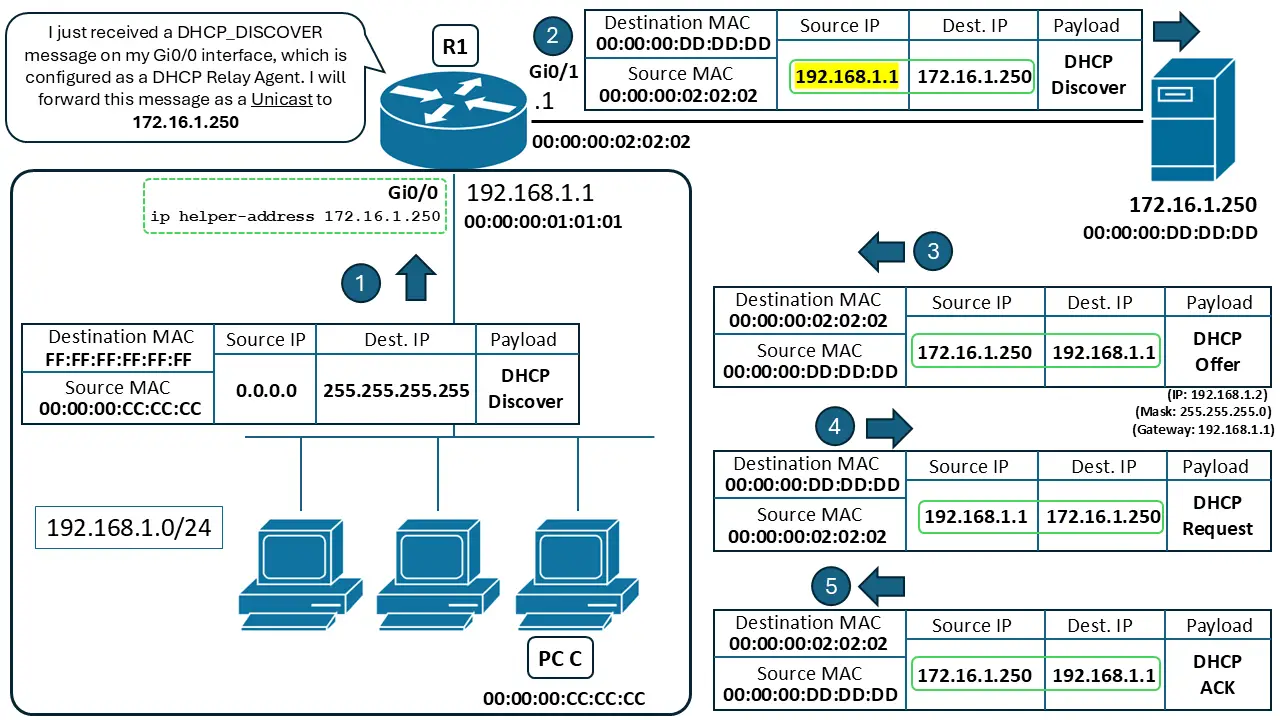
A DHCP Relay Agent takes the Layer 2 DHCP_DISCOVER Broadcast Frame and converts it into a Unicast IP packet so it can be routed (or “relayed”) to the DHCP Server. When the Server sends the response packets (“Offer” and “ACK”) back to the router, the router will receive those packets and forward them to the appropriate DHCP client’s MAC Address.
A router can be configured as a DHCP Relay Agent. The requirements are:
- The Router must have its router interface(s) within the same network (Broadcast Domain) as the DHCP Clients.
- The router must have a valid route to the DHCP Server.
The command to configure a router as a DHCP Relay Agent is shown below. This command must be entered under the router interface that faces the DHCP Clients:
| Command | DHCP Server’s IP address |
|---|---|
| ip helper-address | 172.16.1.250 |
Let’s look at how the D.O.R.A. process completes after adding this configuration:
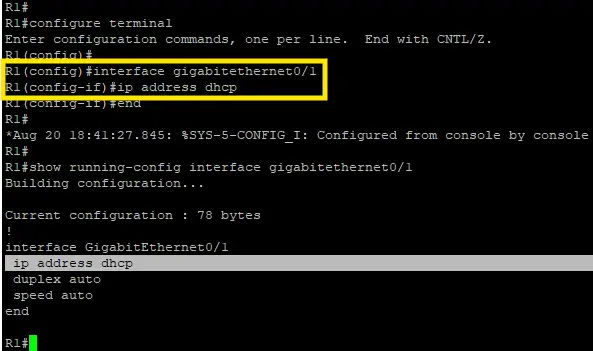
Configuring a router to be a DHCP client
Sometimes you can’t reserve a Static IP address for a router interface, so the interface must receive an IP address from a DHCP Server. This is common with home internet or broadband/residential service. Many home routers work this way.
Let’s look at how to configure this on a Cisco router.
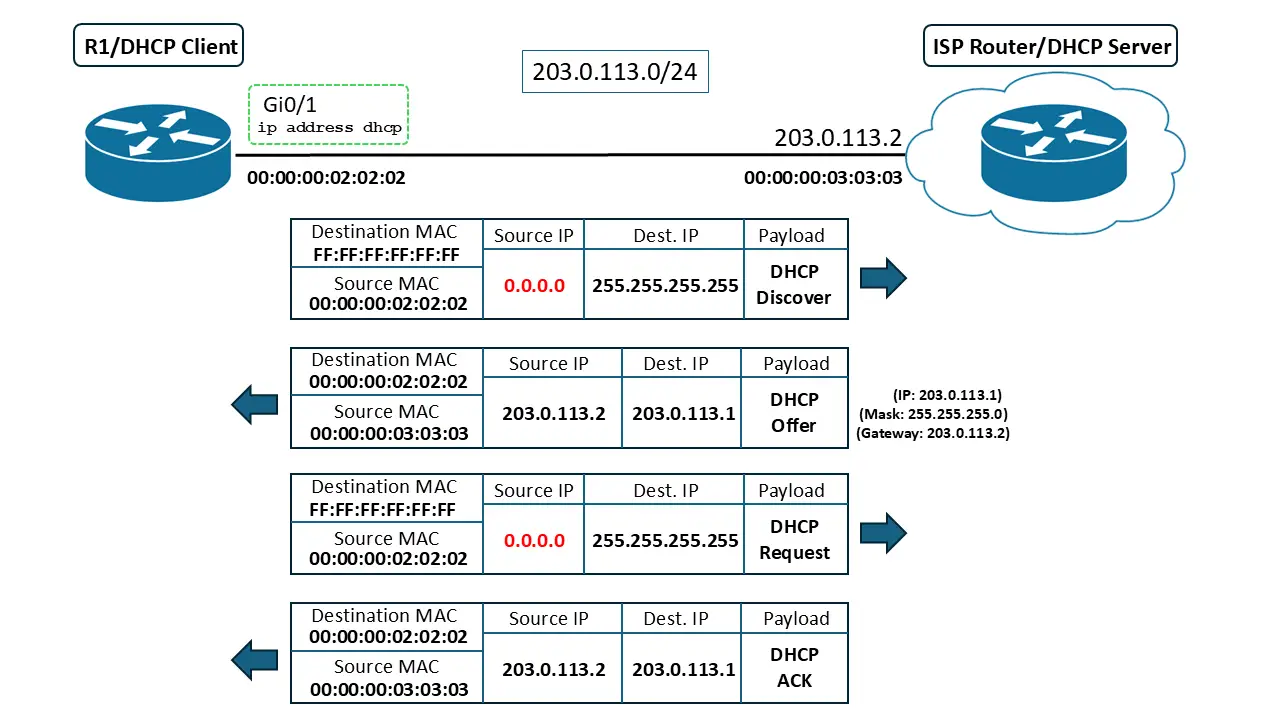
In this scenario:
- R1 needs an IP address on its GigabitEthernet0/1 interface via DHCP.
- The ISP router has a DHCP pool configured and will lease an IP address to R1.
To configure a router interface to obtain an IP address via DHCP, go under the interface and enter:
That’s it. The router will go through the D.O.R.A. process with the DHCP Server like any other DHCP Client.