



![R1#show ip route output listing connected and local routes for 10.1.1.0/30 and 192.168.1.0/24 via GigabitEthernet interfaces, plus a static route S 192.168.4.0/24 [1/0] via 10.1.1.2.](https://assets.achievable.me/productFiles/c3e1cca4-451f-40e9-9474-0eaf23f814fe/3502b-a-static-route-to-the-1921684024-network--20261101024856--2d139bc23fbe67d4a93a110f7527b41064dded15fd36d767326f3e50a3063657.webp)
![R1 connects to 192.168.1.0/24 via Gi0/0 and to R2 via Gi0/1 over 172.16.1.0/30; R2 connects to the web server 10.2.2.45 on 10.2.2.0/24. R1's routing table lists two connected networks plus a static host route: S 10.2.2.45/32 [1/0] via 172.16.1.2.](https://assets.achievable.me/productFiles/c3e1cca4-451f-40e9-9474-0eaf23f814fe/3505-host-route-to-the-web-server--20260930220621--7cf09b05068192bf3cbf268268063dd1448bc9967e1806a8d4ef0fdc40177879.webp)
Static routing
In the previous chapter, you learned that a router automatically creates routes to networks it’s directly connected to as soon as you assign an IP address from that network to a router interface. As long as the interface is up, the route to that directly connected network appears in the routing table.
That leads to the next question: how do routers learn about remote networks (networks they aren’t directly connected to)? There are two ways to do this. Here, we’ll focus on the simplest approach: manually configuring routes to remote networks. When you manually configure routes like this, they’re called static routes.
Static routes
For a router to forward an IP packet to a destination host, it must have a route in its routing table that points either:
- to that specific host, or
- to the network where that host lives.
Static routes let routers reach remote networks by explicitly listing the remote destination network and the next hop IP address - the IP address of the router that should receive the packet next on the way to that destination.
That next hop is typically a neighboring router (a router you’re directly connected to). The neighboring router doesn’t have to be directly connected to the final destination network, but it does need a route that continues the path toward that destination.
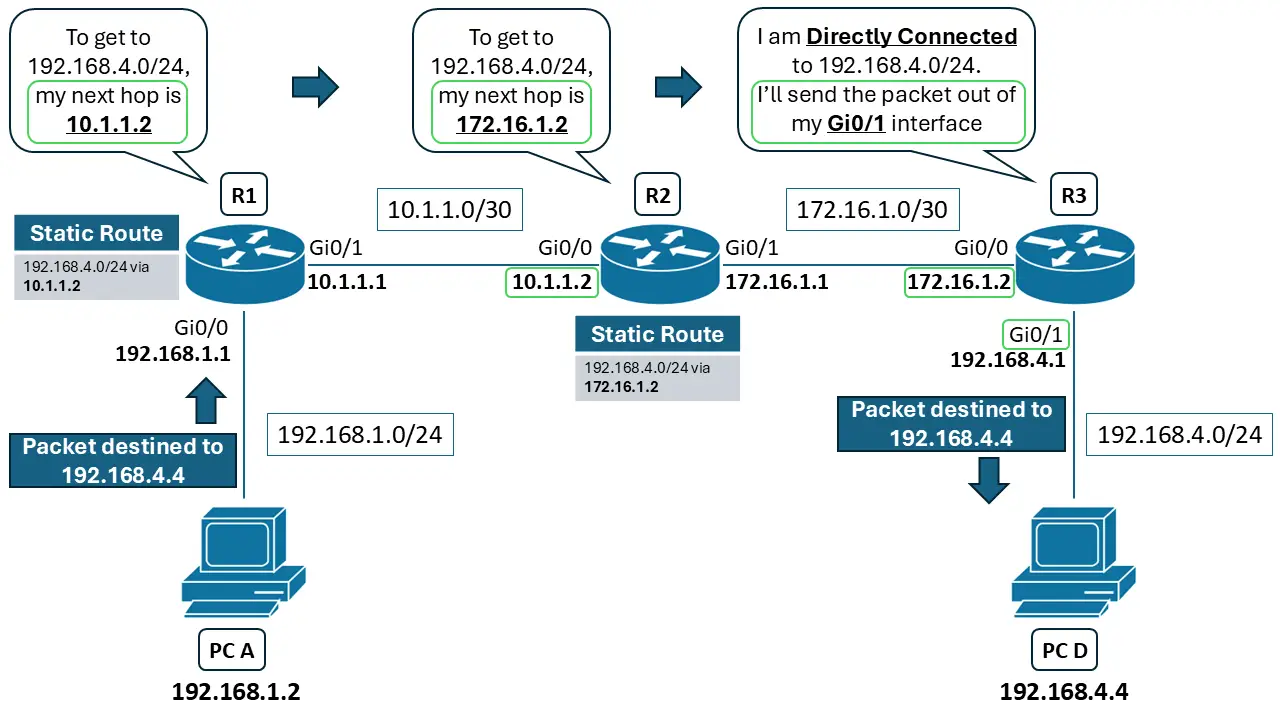
Let’s say a host (PC A) in the 192.168.1.0/24 network (directly connected to R1) needs to communicate with another host (PC D) in a remote network 192.168.4.0/24 (directly connected to R3). If there’s a router in between R1 and R3 (R2), then R1 needs a route toward 192.168.4.0/24 via R2 - and R2 also needs a route toward 192.168.4.0/24.
Bi-directional connectivity
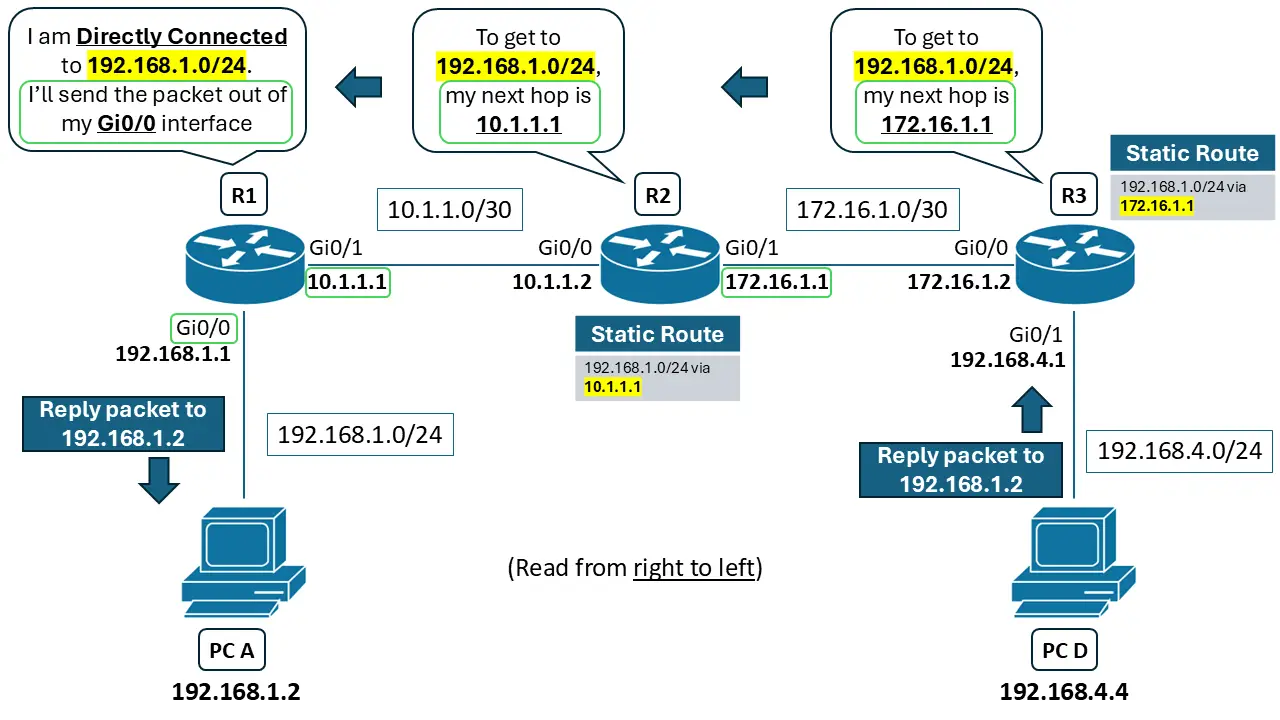
It’s not enough to configure a static route only in the direction your local hosts need to send traffic. The routers on the destination side also need a route back to the source network so return traffic can make it home. This is what we mean by bi-directional connectivity.
Using the same example, if PC D needs to send packets back to PC A, then R3 must have static routes that tell it how to reach the 192.168.1.0/24 network. And because R2 sits in the middle and isn’t directly connected to 192.168.1.0/24, R2 also needs a route to 192.168.1.0/24.
How to read static routes in a routing table
For the CCNA and for real-world administration, you’ll want to be able to read a static route entry in a routing table. We’ll cover configuration in another chapter. For now, here’s a snippet of a static route in a routing table:
Let’s break down what it means:
The default route
A special route called the default route allows a router to forward packets even when it doesn’t have a more specific route to the destination network.
As you learned in Chapter 3.4 Routers and IPv4 routing fundamentals, if a router can’t find a matching entry for a destination network in its routing table, it will drop the packet. A default route changes that behavior by defining a gateway of last resort - a next hop router to send packets to when no more specific routes exist.
The default route uses 0.0.0.0/0 as the destination network. This matches any and every IP network. So if a router doesn’t have a specific entry for a destination network, the default route can still be used.
One key point: the next hop router (and any routers beyond it) must still have routes to the destination network. If they don’t, they’ll drop the packet.
The default route is commonly used for Internet connectivity. You typically point an Internet-facing router to an ISP router’s IP address as the next hop for the default route. The reason is scale: there are about 1,000,000 routes on the Internet at the time of this writing (public IP networks). Storing that many routes would crash the average router. A default route keeps the routing table smaller and memory usage manageable, while still sending Internet-bound traffic in the correct direction.
Floating static routes
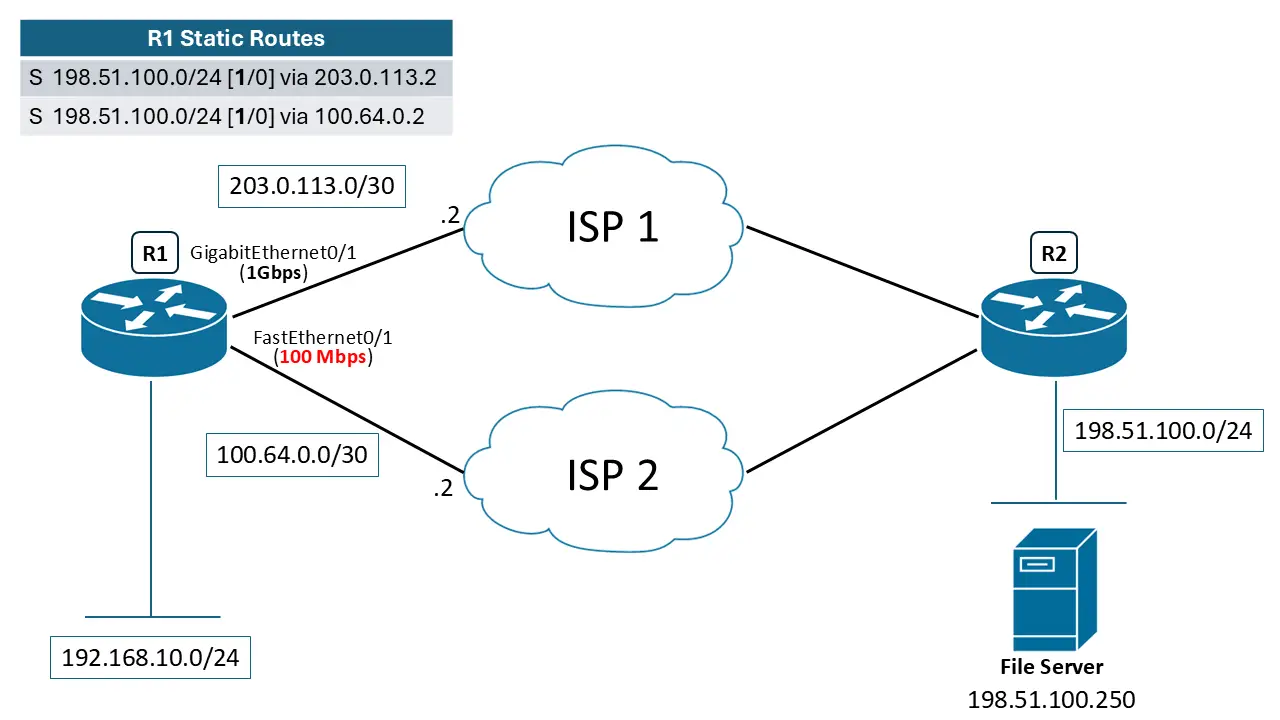
Often, you’ll want backup links between routers in case a primary link fails. Consider an Internet-facing router in your organization that connects to two different ISPs:
R1 has two static routes to reach the file server:
- A route via ISP 1 at 203.0.113.2 (the primary link)
- A route via ISP 2 at 203.0.113.6 (the secondary (backup) link)
The primary link is 1Gbps, so it’s preferred. The backup link is 100 Mbps, which is slower and has less bandwidth. Backup links are often cheaper and lower-bandwidth, but they provide redundancy. Because the backup link is slower, you typically don’t want traffic using both links at the same time.
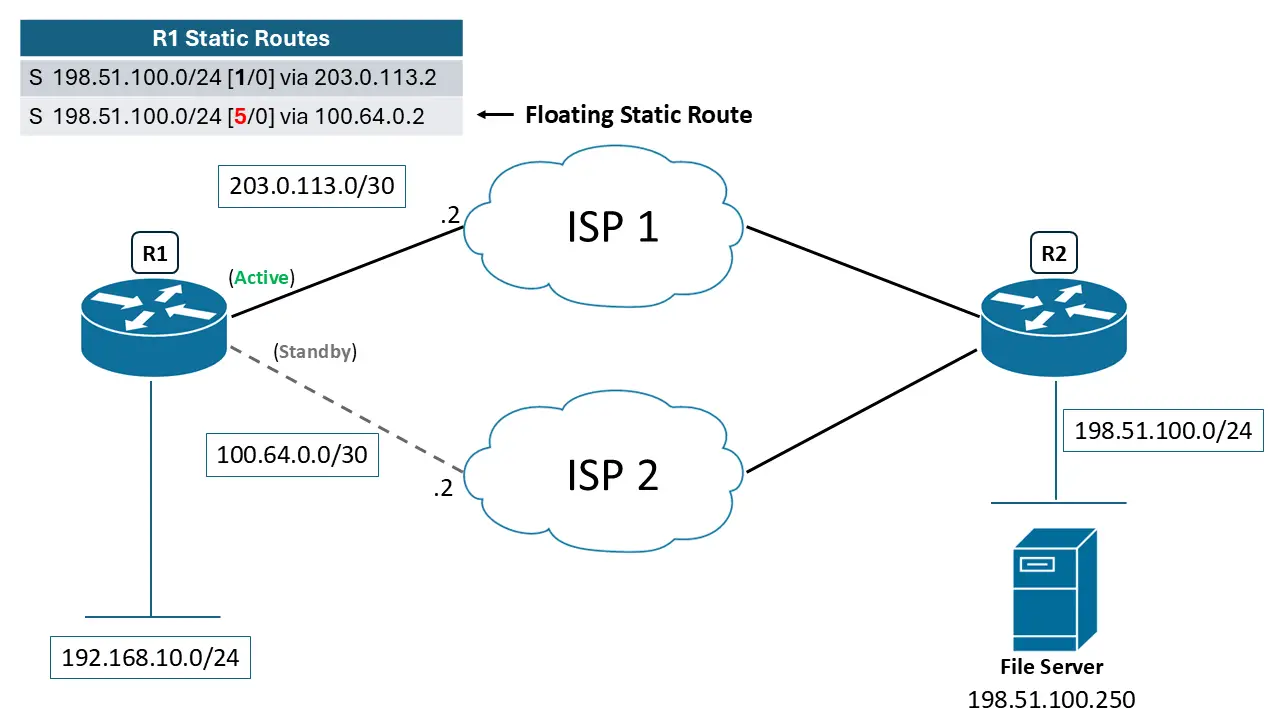
To make the 1Gbps link (ISP 1) the preferred route, you increase the administrative distance on the backup route (ISP 2). As discussed earlier, the lower the AD, the better. Since you can’t lower AD below 1, you make the backup route less preferred by raising its AD.
That backup route is called a floating static route. It stays in the running configuration, but it isn’t installed in the routing table unless the primary route is no longer available. When the primary route goes down, the floating static route is installed automatically. When the primary route comes back, the floating static route is removed from the routing table again until it’s needed.
Let’s see what this would look like once configured:
Host routes
One more route type to know is the host route. A host route is a route to one specific IP address only. You use this when you only need to reach a single device - like a specific server - rather than an entire network.
Host routes are written as a single IP address (for example, 10.2.2.45) with a subnet mask of all 1s: 255.255.255.255. In CIDR notation, that’s 10.2.2.45/32, because all 32 bits are turned on.
Here is what a static host route would look like in a route table:
- S 10.2.2.45/32 [1/0] via 172.16.1.2