



Achievable logoAchievable logo
CCNA
Sign in
Sign up
Purchase
Textbook
Practice exams
Support
How it works
Exam catalog
Mountain with a flag at the peak
Textbook
Introduction
1. Introduction to networking
2. Administering Ethernet LANs
2.1 Wired network access
2.2 Hosts communicating on a Local Area Network
2.2.1 Hosts communicating on a Local Area Network (LAN)
2.2.2 Address Resolution Protocol (ARP) and Ethernet switching
2.3 Virtual LANs (VLANs)
2.4 Layer 2 link redundancy
2.5 Configuring Cisco Switches
3. IP connectivity
4. Network services
5. IPv6
6. Wireless networking
7. Network management and administering network devices
8. Network security fundamentals
9. Network automation and programmability
Wrapping up
Achievable logoAchievable logo
2.2.1 Hosts communicating on a Local Area Network (LAN)
Achievable CCNA
2. Administering Ethernet LANs
2.2. Hosts communicating on a Local Area Network
Our CCNA course is currently in development and is a work-in-progress.

Hosts communicating on a Local Area Network (LAN)

5 min read
Font
Discuss
Share
Feedback

In earlier chapters, you learned that to access an Ethernet LAN, you first connect to an Ethernet switch using either:

  • A UTP cable (Cat 5, Cat 5e, or Cat 6)
  • A fiber-optic cable (if your device supports it)

What is the function of an Ethernet switch?

(spoiler)

An Ethernet switch forwards (switches) Ethernet frames between endpoints within the LAN.

What is a LAN?

(spoiler)

A group of devices connected to each other (typically by Ethernet) within a relatively small geographic area, using an Ethernet switch or multiple interconnected Ethernet switches.

Knowing how endpoints connect to a LAN is only the start. As a Network Administrator and CCNA candidate, you also need to understand how data moves between devices inside the LAN. That understanding matters most when you’re troubleshooting problems that prevent endpoints from communicating.

At which layer of the TCP/IP (or OSI) model are Ethernet frames and switches categorized?

(spoiler)

Layer 2, the Data Link Layer.

Now let’s look at how endpoints communicate through an Ethernet switch using a simple example.

(Image 033)

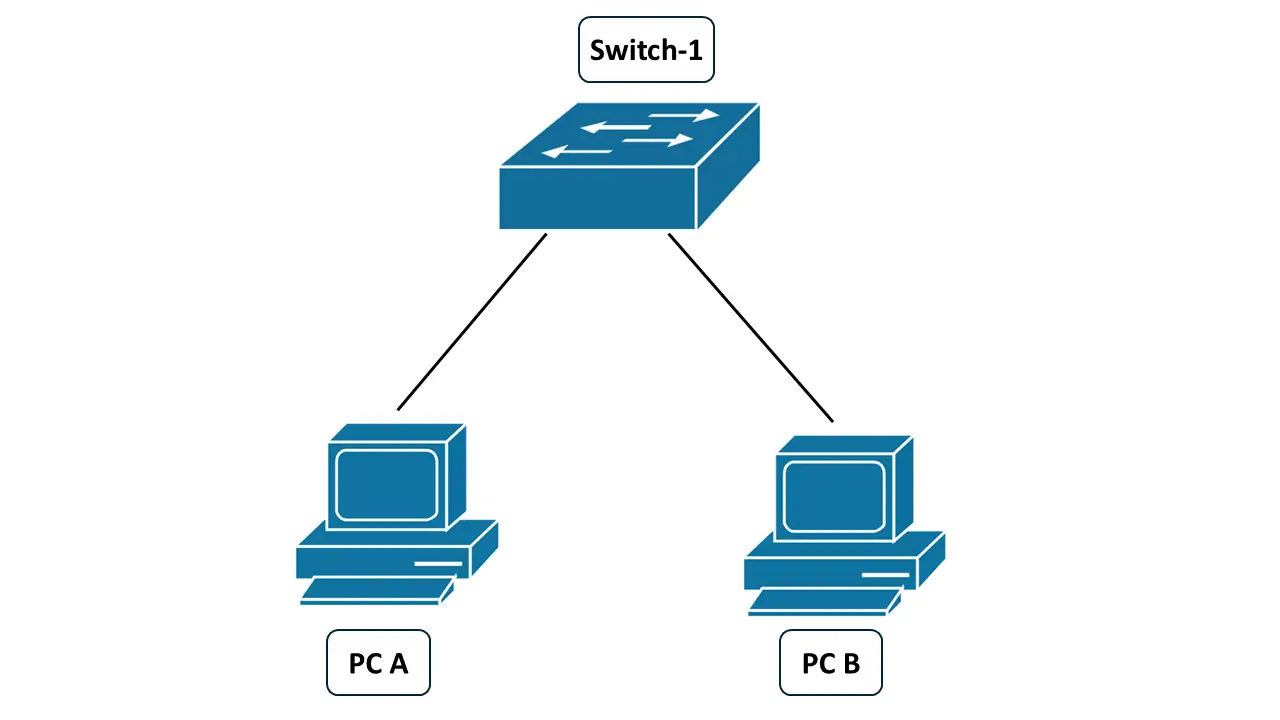
PC A and PC B connected to Switch-1

In the diagram, PC A and PC B are both connected to Switch-1. Most endpoint operating systems include a tool called ping. You use ping to test whether you can communicate bi-directionally with another device.

A few important points about ping:

  • You can ping a device on the same LAN.
  • You can also ping a device on a different LAN.
  • Ping can cross multiple network boundaries because the messages can be routed.
  • Ping can act like a “heartbeat” to check whether a device is still reachable.

If ping fails, the destination might be:

  • Powered off
  • Disconnected from the network
  • Blocked by something between the two devices

We’ll cover that “something in between” in later chapters.

Ping uses a protocol called Internet Control Message Protocol (ICMP). ICMP is part of the TCP/IP stack on common operating systems, including PCs, laptops, routers, and switches.

Here’s the basic ping exchange:

  • PC A sends an ICMP Echo Request (a “ping request”) to PC B.
  • When PC B receives and processes it, ICMP on PC B sends an ICMP Echo Reply back to PC A.

From PC A’s perspective, the ping is successful only if PC A receives the ICMP Echo Reply from PC B.

Ping also uses a timer. PC A waits a certain amount of time for the reply. If the timer expires before the reply arrives, the ping times out, and the attempt is considered a failure.

The ping utility establishes two things:

  • You have a presence on a network
  • There is bi-directional communication between you and the device that you are pinging

Next, let’s confirm that PC A is configured correctly to participate in this LAN.

Verifying IP parameters on PC A

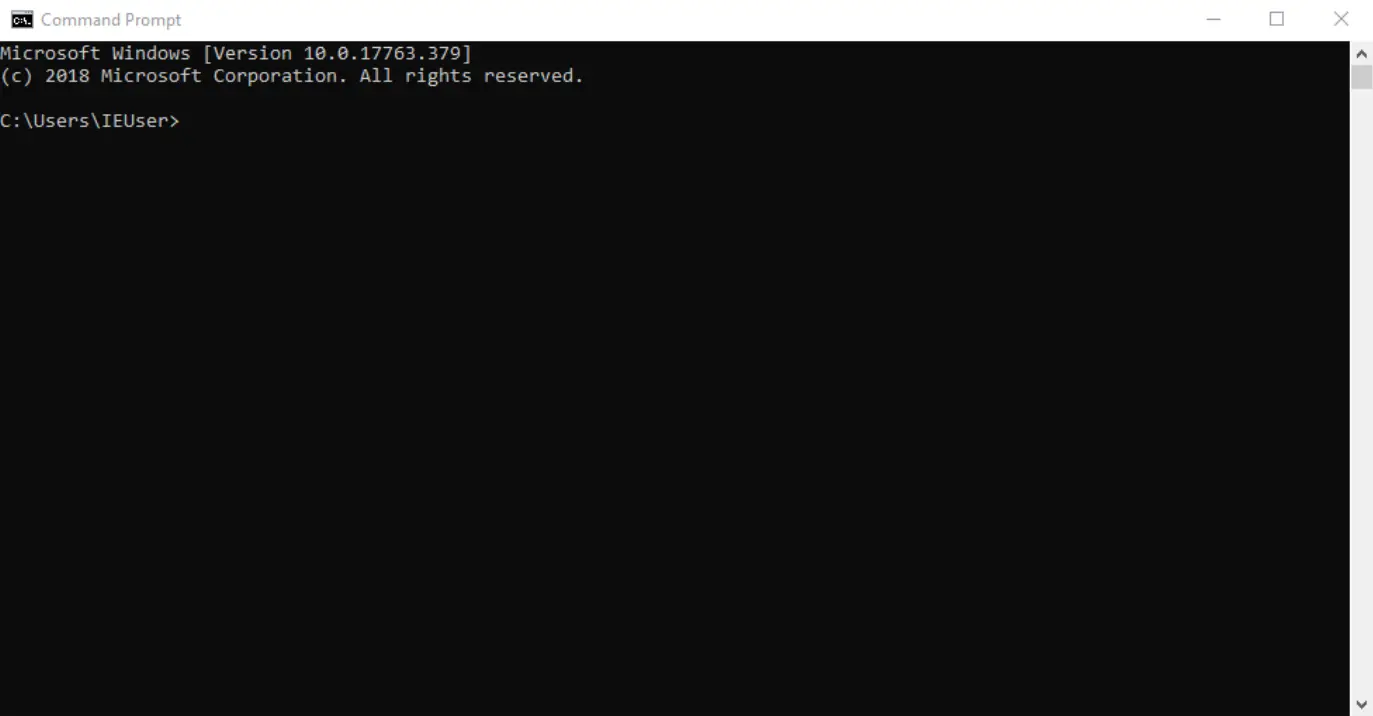
Assume we’re working on PC A, which is running Microsoft Windows. We’ll open the Command Prompt, which is a command-line interface (CLI) that lets you view network settings and test connectivity (including using ping).

(Image 034)

PC A Command Prompt

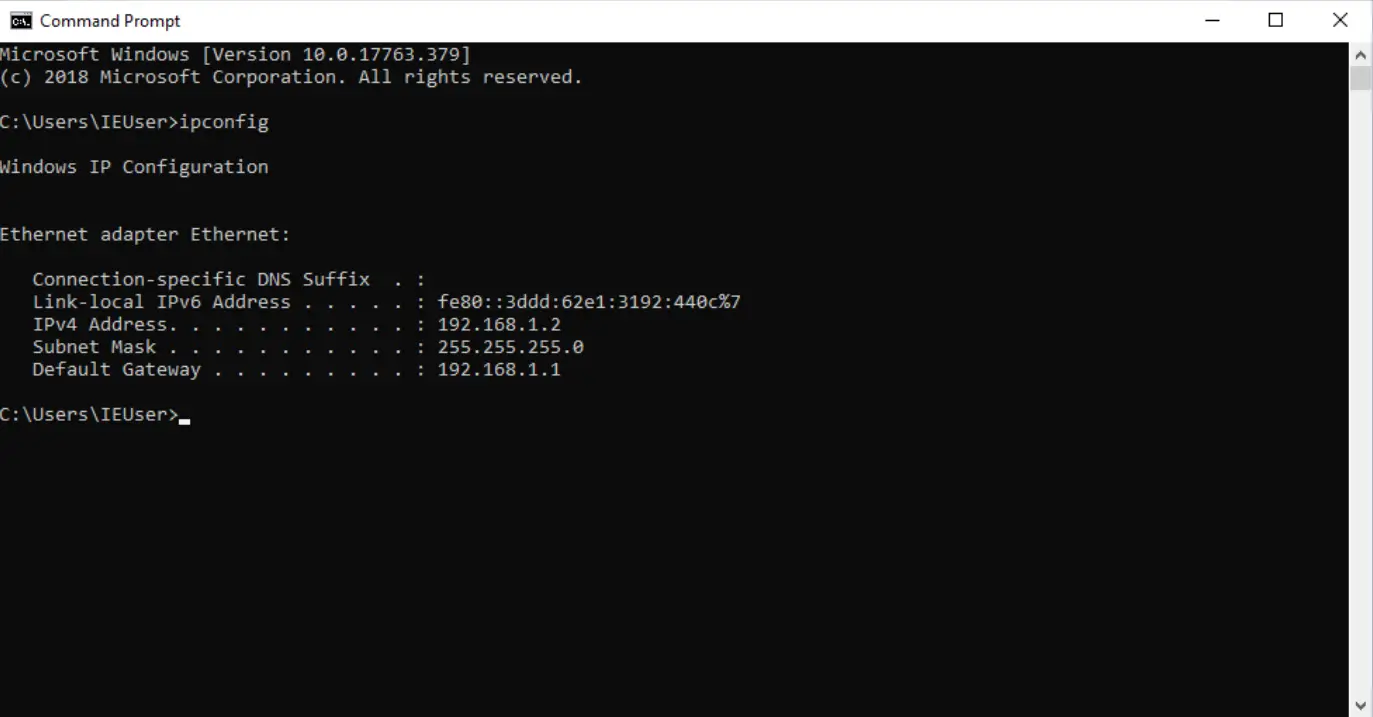
If you enter the command ipconfig, Windows displays the PC’s network configuration and the current state of its network connectivity.

(Image 035)

ipconfig on PC A

In the output, two fields are especially important:

  • IPv4 Address: the IP address configured on PC A
  • Default Gateway: the router that devices on this LAN use to reach destinations outside the LAN

Devices on the same LAN can communicate without using the default gateway. But if a device needs to send traffic to an IP address outside the LAN, it must send that traffic to the default gateway, which routes it toward the remote network.

If you type ipconfig /all, you’ll see more detail, including the PC’s MAC Address (listed as “Physical Address”). You’ll also see information such as DHCP and DNS servers, which we’ll cover in future chapters.

Verifying IP parameters using Linux

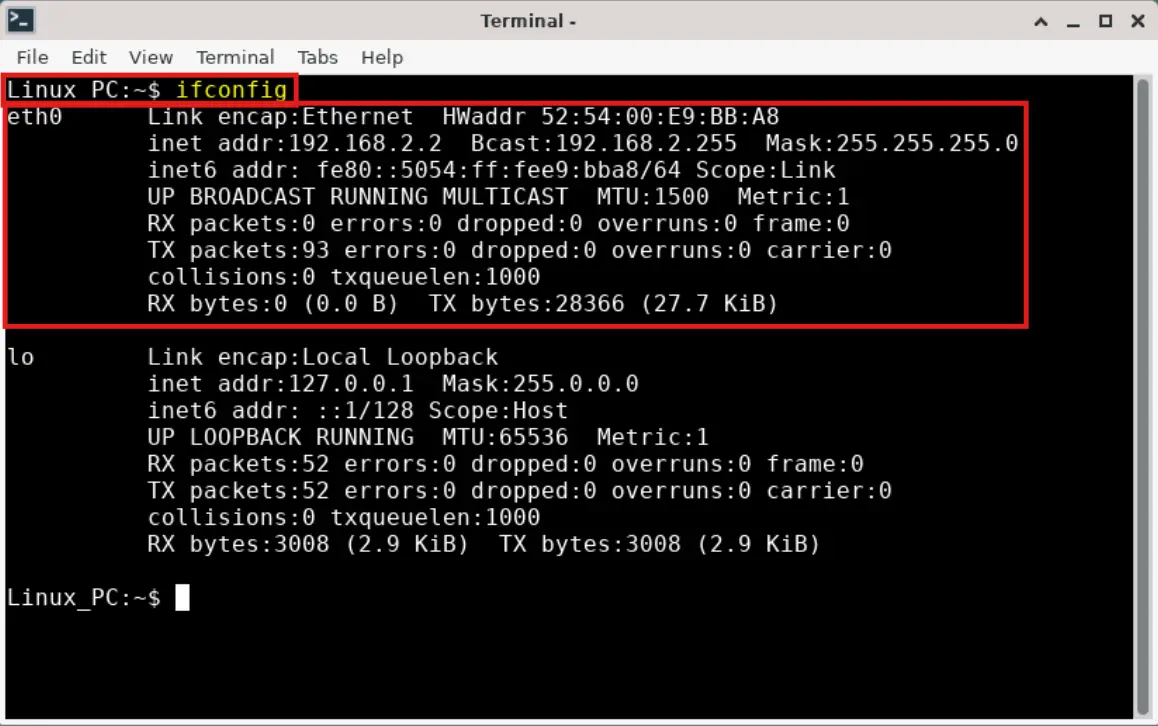
On a Linux operating system, you can verify IP and MAC parameters using the ifconfig command.

(Image 035b)

ifconfig on a Linux computer

Alternatively, you can verify IP parameters in Linux using the ip route command, which also displays the default gateway.

Other versions of Linux may also support the command: ip address show

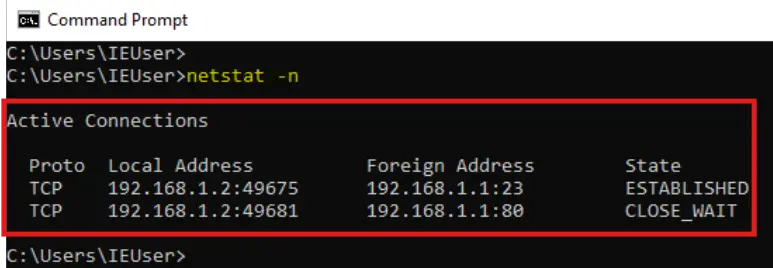
The netstat command displays TCP/UDP connections (sessions), interface statistics, and protocol usage. This command also works on Windows.

(Image 035c)

netstat on a Linux computer

(Image 035d)

netstat on a Windows computer

Verifying IP parameters on Mac OS

On Mac OS, you can verify IP and MAC parameters using the ipconfig command, similar to Windows.

The ipconfig getsummary command also displays the default gateway and additional information.

Conclusion

Now that you know how to test whether two endpoints on a LAN can communicate, the next step is understanding how those messages travel from PC A to PC B.

In the diagram, an Ethernet switch sits between the two endpoints. For a switch to forward and deliver frames, it first needs to learn which switch port each endpoint is connected to. Then it uses specific mechanisms to forward a frame from the sender’s port to the destination’s port.

That leads to an important question: what if the destination endpoint hasn’t communicated on the network yet - how does the switch know which port it’s on?

We’ll answer that in the next chapter, where we explore how switches forward Ethernet frames from switchport to switchport.

Ethernet LAN access

  • Devices connect via UTP (Cat 5/5e/6) or fiber-optic cables
  • Ethernet switch connects endpoints within the LAN

Ethernet switch function

  • Forwards (switches) Ethernet frames between LAN endpoints
  • Operates at Layer 2 (Data Link Layer) of OSI/TCP-IP model

LAN (Local Area Network)

  • Group of devices in a small geographic area
  • Connected by one or more Ethernet switches

Ping utility and ICMP

  • Ping tests bi-directional connectivity between devices
  • Uses ICMP protocol: Echo Request and Echo Reply messages
  • Ping can cross LAN boundaries; checks device reachability

Ping failure causes

  • Destination device powered off or disconnected
  • Network path blocked

Verifying IP parameters (Windows)

  • Use ipconfig in Command Prompt to view:
    • IPv4 Address (device’s IP)
    • Default Gateway (router for external traffic)
  • ipconfig /all shows MAC address and more details

Verifying IP parameters (Linux)

  • ifconfig shows IP and MAC parameters
  • ip route displays default gateway
  • netstat shows connections, statistics, and protocol usage

Verifying IP parameters (Mac OS)

  • ipconfig and ipconfig getsummary display IP, MAC, and gateway info

LAN communication essentials

  • Devices on same LAN communicate directly (no gateway needed)
  • Default gateway required for external communication
  • Switch must learn which port each endpoint is on to forward frames

Next steps

  • Switches use mechanisms to learn and forward frames between ports
  • Handling unknown destination ports covered in next chapter

Sign up for free to take 5 quiz questions on this topic

Previous
Next  | 2.2.2 Address Resolution Protocol (ARP) and Ethernet switching
All rights reserved ©2016 - 2026 Achievable, Inc.

Hosts communicating on a Local Area Network (LAN)

In earlier chapters, you learned that to access an Ethernet LAN, you first connect to an Ethernet switch using either:

  • A UTP cable (Cat 5, Cat 5e, or Cat 6)
  • A fiber-optic cable (if your device supports it)

What is the function of an Ethernet switch?

(spoiler)

An Ethernet switch forwards (switches) Ethernet frames between endpoints within the LAN.

What is a LAN?

(spoiler)

A group of devices connected to each other (typically by Ethernet) within a relatively small geographic area, using an Ethernet switch or multiple interconnected Ethernet switches.

Knowing how endpoints connect to a LAN is only the start. As a Network Administrator and CCNA candidate, you also need to understand how data moves between devices inside the LAN. That understanding matters most when you’re troubleshooting problems that prevent endpoints from communicating.

At which layer of the TCP/IP (or OSI) model are Ethernet frames and switches categorized?

(spoiler)

Layer 2, the Data Link Layer.

Now let’s look at how endpoints communicate through an Ethernet switch using a simple example.

(Image 033)

PC A and PC B connected to Switch-1

In the diagram, PC A and PC B are both connected to Switch-1. Most endpoint operating systems include a tool called ping. You use ping to test whether you can communicate bi-directionally with another device.

A few important points about ping:

  • You can ping a device on the same LAN.
  • You can also ping a device on a different LAN.
  • Ping can cross multiple network boundaries because the messages can be routed.
  • Ping can act like a “heartbeat” to check whether a device is still reachable.

If ping fails, the destination might be:

  • Powered off
  • Disconnected from the network
  • Blocked by something between the two devices

We’ll cover that “something in between” in later chapters.

Ping uses a protocol called Internet Control Message Protocol (ICMP). ICMP is part of the TCP/IP stack on common operating systems, including PCs, laptops, routers, and switches.

Here’s the basic ping exchange:

  • PC A sends an ICMP Echo Request (a “ping request”) to PC B.
  • When PC B receives and processes it, ICMP on PC B sends an ICMP Echo Reply back to PC A.

From PC A’s perspective, the ping is successful only if PC A receives the ICMP Echo Reply from PC B.

Ping also uses a timer. PC A waits a certain amount of time for the reply. If the timer expires before the reply arrives, the ping times out, and the attempt is considered a failure.

The ping utility establishes two things:

  • You have a presence on a network
  • There is bi-directional communication between you and the device that you are pinging

Next, let’s confirm that PC A is configured correctly to participate in this LAN.

Verifying IP parameters on PC A

Assume we’re working on PC A, which is running Microsoft Windows. We’ll open the Command Prompt, which is a command-line interface (CLI) that lets you view network settings and test connectivity (including using ping).

(Image 034)

PC A Command Prompt

If you enter the command ipconfig, Windows displays the PC’s network configuration and the current state of its network connectivity.

(Image 035)

ipconfig on PC A

In the output, two fields are especially important:

  • IPv4 Address: the IP address configured on PC A
  • Default Gateway: the router that devices on this LAN use to reach destinations outside the LAN

Devices on the same LAN can communicate without using the default gateway. But if a device needs to send traffic to an IP address outside the LAN, it must send that traffic to the default gateway, which routes it toward the remote network.

If you type ipconfig /all, you’ll see more detail, including the PC’s MAC Address (listed as “Physical Address”). You’ll also see information such as DHCP and DNS servers, which we’ll cover in future chapters.

Verifying IP parameters using Linux

On a Linux operating system, you can verify IP and MAC parameters using the ifconfig command.

(Image 035b)

ifconfig on a Linux computer

Alternatively, you can verify IP parameters in Linux using the ip route command, which also displays the default gateway.

Other versions of Linux may also support the command: ip address show

The netstat command displays TCP/UDP connections (sessions), interface statistics, and protocol usage. This command also works on Windows.

(Image 035c)

netstat on a Linux computer

(Image 035d)

netstat on a Windows computer

Verifying IP parameters on Mac OS

On Mac OS, you can verify IP and MAC parameters using the ipconfig command, similar to Windows.

The ipconfig getsummary command also displays the default gateway and additional information.

Conclusion

Now that you know how to test whether two endpoints on a LAN can communicate, the next step is understanding how those messages travel from PC A to PC B.

In the diagram, an Ethernet switch sits between the two endpoints. For a switch to forward and deliver frames, it first needs to learn which switch port each endpoint is connected to. Then it uses specific mechanisms to forward a frame from the sender’s port to the destination’s port.

That leads to an important question: what if the destination endpoint hasn’t communicated on the network yet - how does the switch know which port it’s on?

We’ll answer that in the next chapter, where we explore how switches forward Ethernet frames from switchport to switchport.

Key points

Ethernet LAN access

  • Devices connect via UTP (Cat 5/5e/6) or fiber-optic cables
  • Ethernet switch connects endpoints within the LAN

Ethernet switch function

  • Forwards (switches) Ethernet frames between LAN endpoints
  • Operates at Layer 2 (Data Link Layer) of OSI/TCP-IP model

LAN (Local Area Network)

  • Group of devices in a small geographic area
  • Connected by one or more Ethernet switches

Ping utility and ICMP

  • Ping tests bi-directional connectivity between devices
  • Uses ICMP protocol: Echo Request and Echo Reply messages
  • Ping can cross LAN boundaries; checks device reachability

Ping failure causes

  • Destination device powered off or disconnected
  • Network path blocked

Verifying IP parameters (Windows)

  • Use ipconfig in Command Prompt to view:
    • IPv4 Address (device’s IP)
    • Default Gateway (router for external traffic)
  • ipconfig /all shows MAC address and more details

Verifying IP parameters (Linux)

  • ifconfig shows IP and MAC parameters
  • ip route displays default gateway
  • netstat shows connections, statistics, and protocol usage

Verifying IP parameters (Mac OS)

  • ipconfig and ipconfig getsummary display IP, MAC, and gateway info

LAN communication essentials

  • Devices on same LAN communicate directly (no gateway needed)
  • Default gateway required for external communication
  • Switch must learn which port each endpoint is on to forward frames

Next steps

  • Switches use mechanisms to learn and forward frames between ports
  • Handling unknown destination ports covered in next chapter

More from Hosts communicating on a Local Area Network

  • Address Resolution Protocol (ARP) and Ethernet switching